
Inventory tool
Inventory Schedule and Conflict Checker Tutorial
Use the inventory schedule to check availability, create owner-reviewed holds, protect out-and-return windows, and keep return status visible before the next event.
What you will learn
By the end, you should know how to use Eventodesk inventory tools to avoid promising items that are already reserved or not returned yet.
The inventory schedule is one of the most important tools in Eventodesk because it protects the business from a common rental problem: the item looks available in memory, but it is already out, due back too late, damaged, missing, or reserved for another event.
A good inventory workflow checks more than the event date. It looks at when items leave, when they are expected back, how many are needed, what quantity is already reserved, and whether the owner should override a conflict only after reviewing the situation.
Step by step
Use this workflow in order
These steps are written for an owner or office team member trying to finish real work, with plain instructions and practical checkpoints.
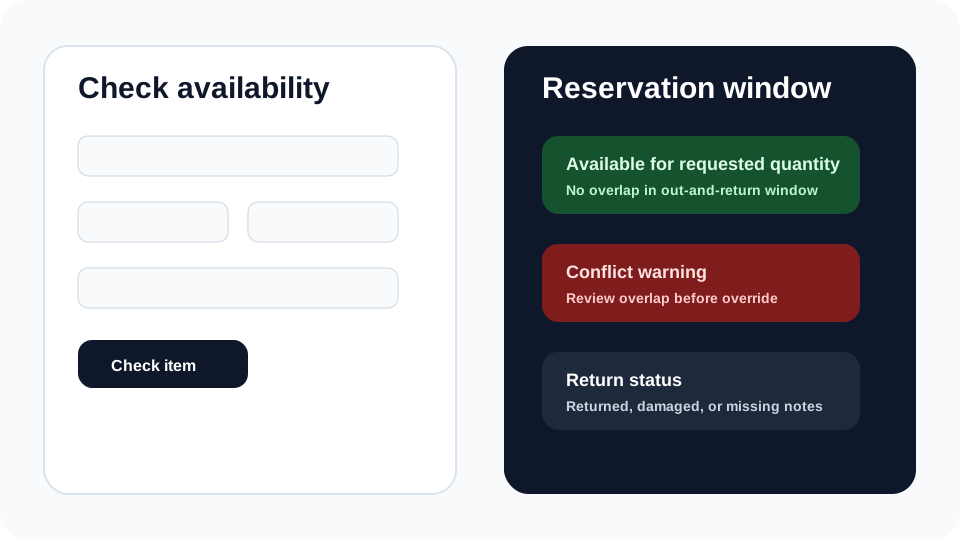
- Check availability before promising Use Check Availability with item, quantity, out date, out time, expected-back date, and expected-back time.
- Create manual reservations for confirmed work Reserve items for booked events, internal holds, walk-ins, or owner-created jobs that did not start from a public form.
- Respect conflict warnings If the schedule shows an overlap, review the event, quantity, return timing, and owner notes before overriding anything.
- Track out and return status Mark what went out, what returned, and what came back damaged or missing so the next quote is accurate.
- Use notes for operational context Add setup, loading, delivery, damage, or return notes so the team does not depend on memory.
Workflow map
What to look for inside Eventodesk
Availability check
Test whether a quantity is workable before replying to the customer.
Manual reservation
Create a hold for confirmed jobs and internal commitments.
Conflict warning
Review overlapping out-and-return windows before accepting risk.
Return status
Track returned, damaged, or missing items after the event.
Owner notes
Keep context attached to the reservation instead of scattered in texts.
Why it helps the business
Business value
- Fewer double-bookings, rushed substitutions, and refund conversations.
- Clearer weekend planning because out, due-back, and return status are visible.
- Better owner confidence when responding to quote and availability requests.
Avoid these mistakes
Common problems
- Checking only the event start date instead of the full out-and-return window.
- Creating reservations after the event is already confirmed verbally.
- Skipping return status and then quoting based on inventory that is damaged or missing.
Start here
Protect inventory before the customer hears yes.
Use availability checks, reservations, conflicts, and return tracking to make owner-reviewed quotes safer.
Related Eventodesk pages
Use these pages to connect the tutorial workflow to product value and conversion.
Plan the next step
Use these pages when you are deciding whether Eventodesk fits your rental business.